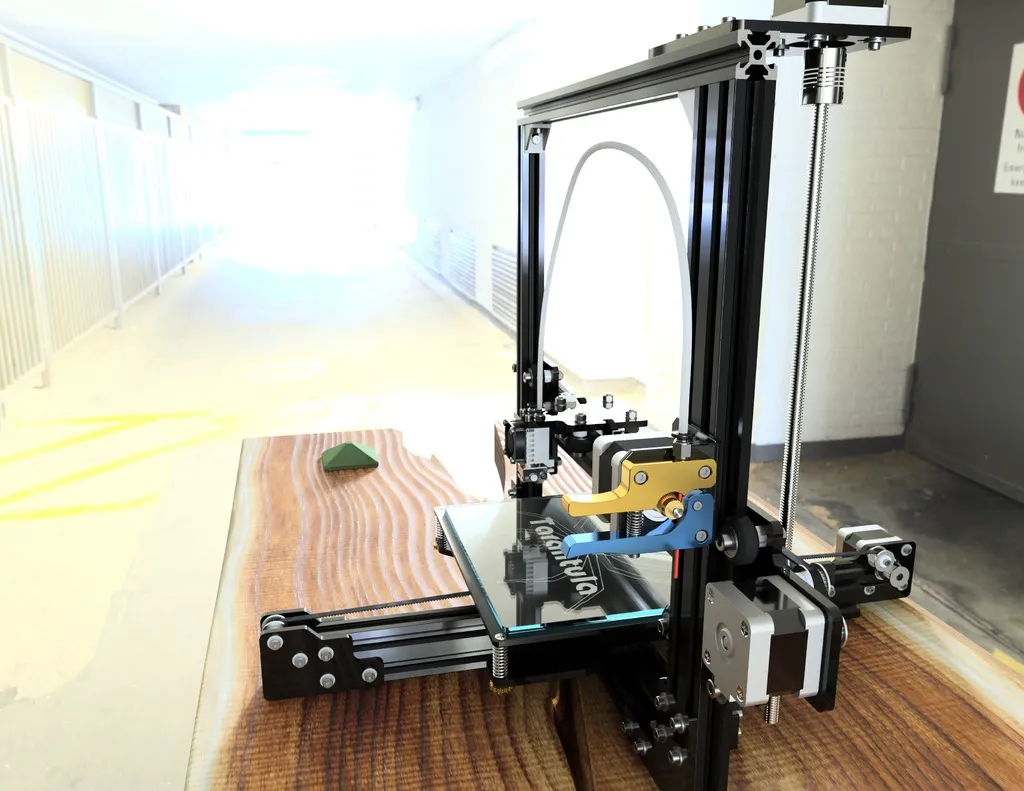
Understanding Gcode for Tevo Tarantula
The Tevo Tarantula has become a popular choice for 3D printing enthusiasts, known for its affordability and ease of use. However, to truly unlock its potential and achieve high-quality prints, a solid understanding of Gcode is essential. Gcode acts as the language that instructs your 3D printer on how to behave, dictating everything from nozzle movement and temperature to material extrusion. Mastering Gcode allows you to fine-tune your prints, troubleshoot issues, and ultimately produce more complex and visually appealing objects. This guide is designed to provide you with the necessary knowledge to navigate the world of Gcode effectively, allowing you to troubleshoot and improve your Tevo Tarantula 3D printing experience.
What is Gcode and Why Is It Important
Gcode is a numerical control programming language used to instruct a 3D printer, or other CNC machines, on how to move and what actions to perform. Think of it as a detailed set of instructions that tells your Tevo Tarantula what to do at every moment during the printing process. These instructions are generated by slicing software, which converts a 3D model into a series of commands that the printer can understand. Without Gcode, your printer would simply sit idle, unable to interpret the 3D model and translate it into a physical object. Understanding Gcode allows you to customize your prints and address any problems that may arise during printing.
The importance of Gcode lies in its control over every aspect of the printing process. From the speed at which the nozzle moves to the temperature of the hot end and bed, Gcode gives you the ability to control these parameters. A basic understanding of Gcode also helps you diagnose and fix common printing problems. For example, if your prints aren’t adhering to the bed, you can adjust the initial layer settings within the Gcode. Or if your print is experiencing over-extrusion, you can adjust the flow rate commands in the Gcode.
Gcode’s Role in 3D Printing

In the context of 3D printing, Gcode serves as the bridge between your 3D model and the physical object being created. Once you’ve designed your 3D model and sliced it using software like Cura or PrusaSlicer, the slicing software converts your model into a series of Gcode instructions. The slicer analyzes your model and generates a series of layers, defining the path of the print head, the amount of material to be extruded, and the temperature settings for the nozzle and bed. Each line of Gcode corresponds to a specific action, such as moving the print head, extruding filament, or changing the temperature. The printer then reads and executes these commands one by one, layer by layer, to build the 3D object.
Gcode controls every crucial aspect of 3D printing, ensuring the accurate reproduction of your digital designs. It determines the print speed, layer height, infill density, and overall quality of the final product. By understanding and modifying Gcode, you can fine-tune these settings to optimize your prints for specific materials, desired resolution, and structural requirements. You can also customize Gcode to introduce unique features, such as pausing the print at certain layers to insert embedded objects or using different colors. The ability to work with Gcode empowers you to experiment, troubleshoot, and push the boundaries of what your Tevo Tarantula can achieve.
Essential Gcode Commands for Tevo Tarantula
To effectively use your Tevo Tarantula, you should be familiar with some essential Gcode commands. These commands form the foundation for controlling the printer’s actions. Some commands control movement, temperature, and material extrusion. Others are designed for setting specific parameters that can optimize the printing process and troubleshoot common issues. Understanding these basic commands will give you the ability to make adjustments and solve issues without the need to completely restart your print.
Movement Commands (G0, G1, G2, G3)
Movement commands tell the printer’s print head where to go. G0 is a rapid movement command used for non-printing moves, like traveling between different parts of the model. G1 is a controlled movement command, used for printing moves, where the printer controls the speed and extrusion of the material. G2 and G3 commands are used for circular movements, allowing the printer to create curves and circles. The most commonly used commands are G0 and G1, which require X, Y, and Z coordinates to specify the target position, and the F value, which represents the feed rate (speed of movement). For example, ‘G1 X100 Y50 F3000’ would move the print head to X100 Y50 at a feed rate of 3000 mm/min.
Temperature Control Commands (M104, M109)

Temperature control is crucial for achieving optimal print quality. M104 sets the target temperature for the hot end, and M109 waits for the hot end to reach the target temperature before proceeding. For example, ‘M104 S200’ sets the hot end temperature to 200 degrees Celsius, and ‘M109 S200’ waits until the hot end reaches 200 degrees Celsius. There are similar commands for the heated bed, such as M140 (set bed temperature) and M190 (wait for bed temperature). Accurate temperature control is vital for successful printing, especially with materials like ABS, which require higher temperatures.
Extrusion Commands (G92, G1 E)
Extrusion commands control the flow of filament through the nozzle. G92 sets the current position of the extruder to a specific value, often used to reset the extruder’s position after a retraction. The G1 E command controls the extrusion of filament, where E represents the amount of filament to extrude. For instance, ‘G1 E10 F200’ extrudes 10mm of filament at a feed rate of 200. Understanding these commands is essential for calibrating your extruder and preventing issues like over-extrusion or under-extrusion. You can tweak the extrusion amount and the feed rate to get the best results, depending on your filament type and printer settings.
Common Gcode Problems and Solutions
Even with the best settings, you may encounter issues. Learning to troubleshoot common Gcode problems will make you a more proficient user. Gcode problems can often manifest as poor print quality or print failures. By understanding the common issues and their associated solutions, you can quickly resolve these problems and get your printer back on track. Always examine the print results and compare them to your Gcode settings to identify the source of the issue.
Layer Adhesion Issues and Gcode adjustments

Poor layer adhesion can result in weak or incomplete prints. This issue can be caused by several factors, including insufficient bed adhesion, incorrect nozzle temperature, or improper cooling. To address layer adhesion problems, start by checking your bed adhesion settings, adjusting the bed temperature, and ensuring the first layer is properly squished onto the bed. You can also adjust the initial layer flow rate in your Gcode to increase the amount of material extruded in the first layer. Another useful solution involves adjusting the print speed for the first few layers to give the layers time to adhere. Adjust the print speed in the initial layers to a slower value. If needed, you can also adjust the nozzle temperature or use a heated bed to improve layer adhesion. Ensure the correct temperature for your filament type.
Over-Extrusion and Under-Extrusion Troubleshooting
Over-extrusion, where too much filament is extruded, results in a rough surface, blobs, and potential jams. Under-extrusion, where not enough filament is extruded, can lead to gaps in the layers and weak prints. To troubleshoot over-extrusion, adjust the flow rate settings in your slicing software, reduce the extrusion multiplier, and ensure your extruder is calibrated correctly. For under-extrusion, increase the flow rate, calibrate the extruder, and check for any clogs in the nozzle. You may also need to increase the printing temperature slightly. Calibrating your E-steps (the steps per millimeter that the extruder motor moves) is a key step in resolving these issues.
Optimizing Gcode for Different Materials
Different 3D printing materials have unique properties and require different Gcode settings. Understanding the optimal settings for each material will significantly improve your print quality and success rate. When using different filaments, settings like print temperature, bed temperature, and print speed need to be adjusted based on the filament type. Experimenting with different settings and making small adjustments can yield significant improvements in your prints. Remember to consult the filament manufacturer’s recommended settings as a starting point.
Gcode Settings for PLA

PLA (Polylactic Acid) is a popular and user-friendly 3D printing material. PLA typically prints at nozzle temperatures between 190-220°C and bed temperatures of 0-60°C. Print speeds generally range from 40-60 mm/s, depending on your printer’s capabilities and the complexity of your model. Common Gcode settings for PLA include these parameters. For example, you might use M104 S200 to set the nozzle temperature to 200°C and M140 S50 for the bed temperature set to 50°C. Also, ensure proper bed adhesion to prevent warping. These are just starting points; you should experiment and adjust these settings based on the specific PLA filament you are using and the results you achieve.
Gcode Settings for ABS
ABS (Acrylonitrile Butadiene Styrene) is a durable material that requires higher temperatures. ABS usually prints at nozzle temperatures between 230-250°C and bed temperatures of 80-110°C. Print speeds are often slower than with PLA, typically around 30-50 mm/s. Due to its tendency to warp, ABS requires a heated bed and often benefits from an enclosure to maintain a consistent temperature. You should use these as a starting point. It’s also important to ensure good ventilation when printing with ABS, as it can release fumes. For ABS, you will likely use commands like M104 S240 to set the nozzle temperature to 240°C and M140 S100 for the bed set at 100°C. Be sure to enclose your printer to maintain a constant temperature.
Slicing Software and Gcode Generation
Slicing software is the essential tool for converting your 3D models into Gcode instructions. It takes your 3D model and slices it into layers, generating the Gcode that your printer will use. The quality of your Gcode, and therefore the quality of your prints, depends heavily on the slicing software you use and how you configure its settings. Using the right slicing software and understanding how to configure it is crucial. You need to be able to generate the best Gcode for your printer and your material.
Popular Slicing Programs for Tevo Tarantula

Several slicing programs are popular for use with the Tevo Tarantula. Cura is a widely used and highly versatile slicer that offers a user-friendly interface and extensive customization options. PrusaSlicer, known for its advanced features and excellent print quality, is another powerful choice. Simplify3D is a commercial slicer that offers more advanced features and optimization tools, but it comes at a cost. The choice of slicing software often depends on your experience level, the features you need, and your budget. Experimenting with different programs can help you determine which one best suits your workflow and printing needs. Each of these slicing programs allows you to adjust a wide range of settings to optimize your Gcode.
Customizing Gcode in Slicing Software
Most slicing software provides the ability to customize Gcode generation through profiles and settings. You can define specific settings for different materials, print qualities, and printer configurations. Within the software, you can modify parameters like print speed, temperature, retraction settings, and layer height. These settings are then translated into the corresponding Gcode commands. Some slicers also allow you to insert custom Gcode scripts, which gives you even more control over the printing process. Exploring these options lets you tailor your prints, correct issues, and get the best results from your Tevo Tarantula. You can adjust the settings in your slicing software to generate Gcode optimized for your Tevo Tarantula.
By understanding the basics of Gcode and how it relates to your Tevo Tarantula 3D printer, you’re well on your way to improving your printing results. With this knowledge, you can start adjusting settings, fine-tuning print parameters, and tackling any issues that might come up. Remember that practice and experimentation are essential to mastering Gcode. Now go ahead and experiment with your printer. Happy printing!